Post update fixing
Chapter 1: The Update That Broke Things
An update rolled in. After update my laptop looked like new, screen is very clear ( not my usual night vision + low brightness) — until I reached for Night Light and brightness controls. Not working. sliders are moving but no actual change in brightness, no warmth, nothing. My laptop had apparently decided it was above such luxuries.
Chapter 2: Putting on the Detective Hat 🕵️
Time to open Device Manager and interrogate the display driver. ( Got to know about this from Chat GPT, after explaining my problem)
Win + X → Device Manager → Display adapters → Properties → Driver tab
And there it was — the culprit, staring back at me:
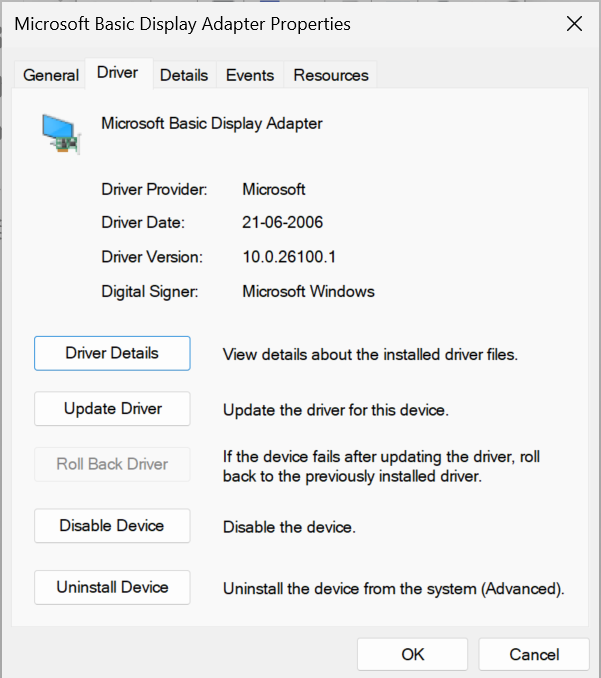
Microsoft Basic Display Adapter
Gasp. The generic understudy had taken over the stage, and it doesn’t know a single line about Night Light or brightness control.
Chapter 3: Don’t Panic, Don’t Uninstall
Rule #1 of driver crime scenes: don’t touch anything hastily. No rollback (there’s nothing to roll back to — Basic is the fallback). No random driver download from some sketchy third-party site either. That’s how you turn a small mystery into a full-blown thriller.
Chapter 4: Getting the Device’s ID Card
To find the actual hardware behind the mask, I went to the Events tab in driver properties and found the hardware ID:
DEV_15E7
That’s my AMD GPU’s real name tag — the key to finding its proper OEM driver, not just any driver.
😮 Screen Flicker
(My laptop screen)
Screen flickered again , and then—
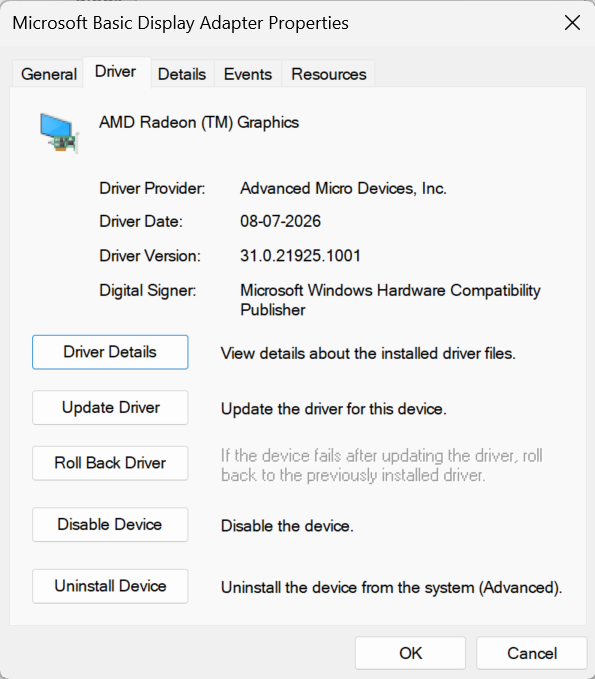
✨ Night Light: back. ✨ Brightness slider: back. ✨ Peace: restored and driver is also updated
Chapter 5: The Plot Twist 🌀
Before all this detective work, I’d tried one small thing almost as a reflex:
Win + Ctrl + Shift + B → resets the graphics driver
Screen flickered. No beep on my end, . At the time I thought nothing of it — turns out this may have been the first domino that nudged Windows toward loading the generic Basic driver in the first place.
The Moral of the Story
Wait for some time, window update takes some time ( if not worked even after 5 - 10 min, fallow above instructions) don’t panic and uninstall something ( because we are not the type to remember what we installed, even if remembered, bringing it back is another work!!)
Next up: where to actually find the right OEM driver for your specific laptop model — stay tuned.
Why not in this blog? 🤔 Because my problem is solved 😁